
Add Pantone Connect as an enterprise application in Azure AD
To add new application in Azure AD
-
Log in to the Azure Portal.
-
In the Azure Services section, choose Azure Active Directory.
-
In the left sidebar, choose Enterprise applications.
-
Choose New application.
-
On the Browse Azure AD Gallery page, choose Create your own application.
-
Under What’s the name of your app?, enter a name for your application and select Integrate any other application you don’t find in the gallery (Non-gallery), as shown in Figure 2. Choose Create.

It will take few seconds for the application to be created in Azure AD, then you should be redirected to the Overview page for the newly added application.
Note: Occasionally, this step can result in a Not Found error, even though Azure AD has successfully created a new application. If that happens, in Azure AD navigate back to Enterprise applications and search for your application by name.
To set up Single Sign-on using SAML
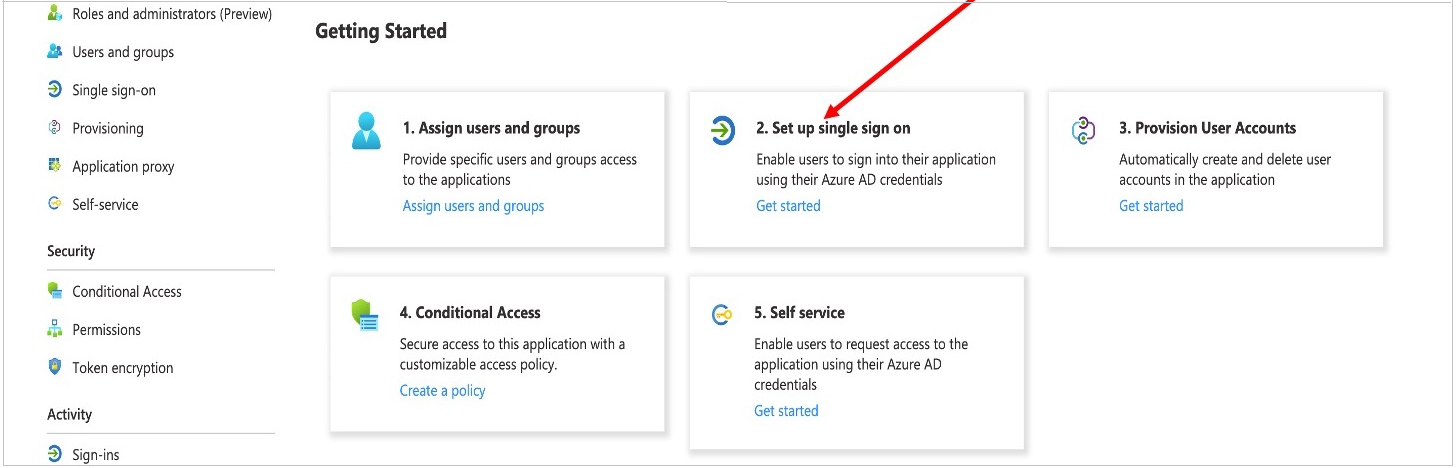
On the Getting started page, in the Set up single sign on tile, choose Get started, as shown in Figure 3.
2. On the next screen, select SAML.
3. In the middle pane under Set up Single Sign-On with SAML, in the Basic SAML Configuration section, choose the edit icon (
 ).
).2. In the right pane under Basic SAML Configuration, replace the default Identifier ID (Entity ID) with Pantone Connect Audience URI. In the Reply URL (Assertion Consumer Service URL) field, enter Pantone Connect Service URL (SP-initiated URL)
as shown in Figure 4. Choose Save.
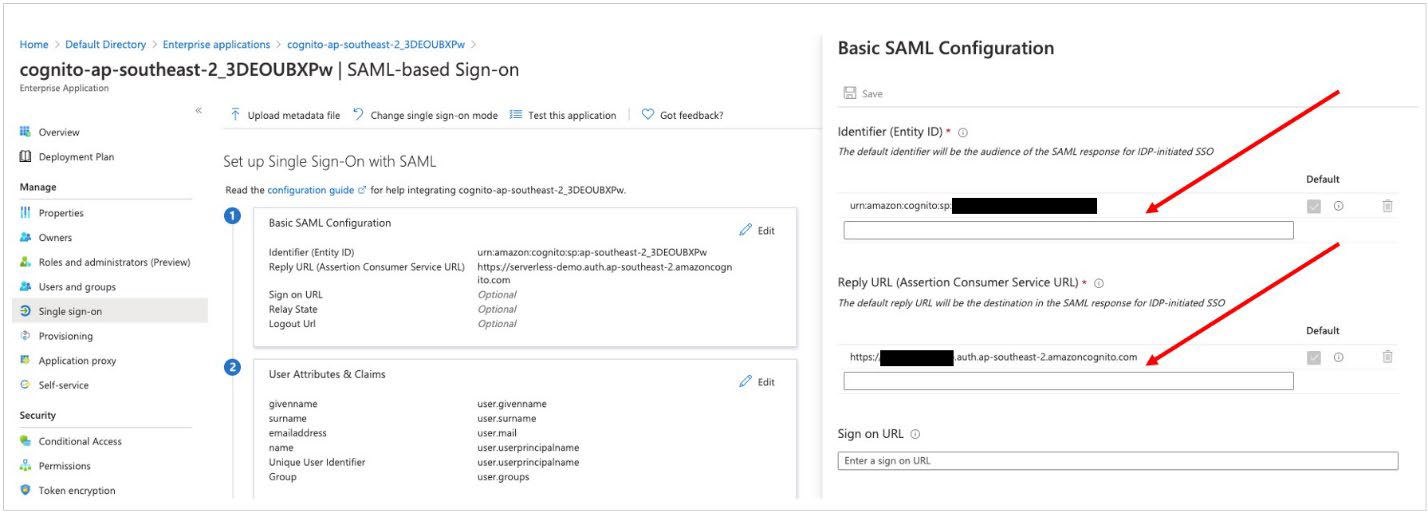
4. In the middle pane under Set up Single Sign-On with SAML, in the User Attributes & Claims section, choose Edit.
5. Choose Add a group claim.
6. On the User Attributes & Claims page, in the right pane under Group Claims, select Groups assigned to the application, leave Source attribute as Group ID, as shown in Figure 5. Choose Save.
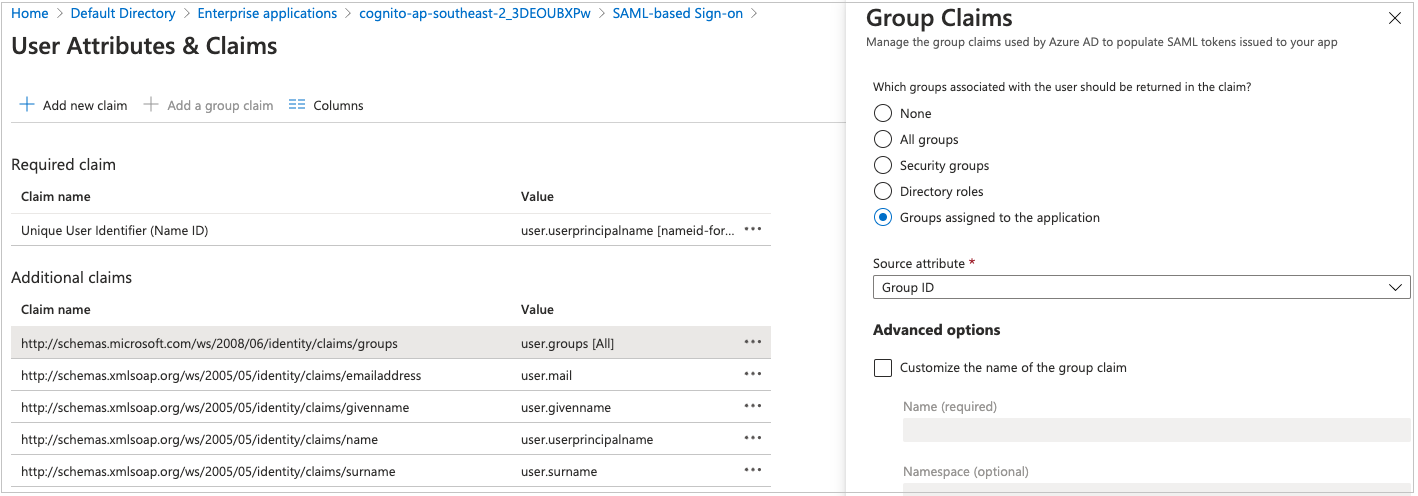
Figure 5: Option to select group claims to release to Amazon Cognito
7. In a text editor, note down the Claim names under Additional claims, as shown in Figure 5. You’ll need these when creating attribute mapping in Amazon Cognito.
8. Close the User Attributes & Claims screen by choosing the X in the top right corner. You’ll be redirected to the Set up Single Sign-on with SAML page.
9. Scroll down to the SAML Signing Certificate section and copy the App Federation Metadata Url by choosing the copy into clipboard icon (highlighted with red arrow in Figure 6). Keep this URL in a text editor, as you’ll need it in the next step.